Microsoft Teams integration
Introduction
Section titled “Introduction”If your team uses Microsoft Teams, you might want to be able to see new suggestions and comments in a dedicated channel.
With our Microsoft Teams integration you can receive notifications of new suggestions and comments in one Microsoft Teams channel, complete with a link to each comment and suggestion
This gives your team the opportunity to discuss private on chat how you might respond to a feature request.
Creating a Microsoft Teams ‘Workflow’
Section titled “Creating a Microsoft Teams ‘Workflow’”Feature Upvote uses a Microsoft Teams feature called “Workflows”. You’ll need to create a workflow using Microsoft Teams. Here’s how:
- On Microsoft Teams, create a channel called Feature Requests or something similar. The name is not important so choose a name that suits you. You can also use an existing channel.
- Right-click on your Feature Requests channel and select “Worflows”
- In the “Workflows” panel that appears, find the template called “Send webhook alerts to a channel” and click on it.
- Confirm the team name and channel and click “Save”.
- A new screen will appear with info about your new workflow.Look for the “Copy webhook link” tex and click on it. This will copy your “webhook link” into your clipboard.
Now switch to Feature Upvote.
- On your Feature Upvote dashboard, select Settings -> Integrations.
- Find Microsoft Teams in the list of integrations and click on Enable.

Select Integrations.
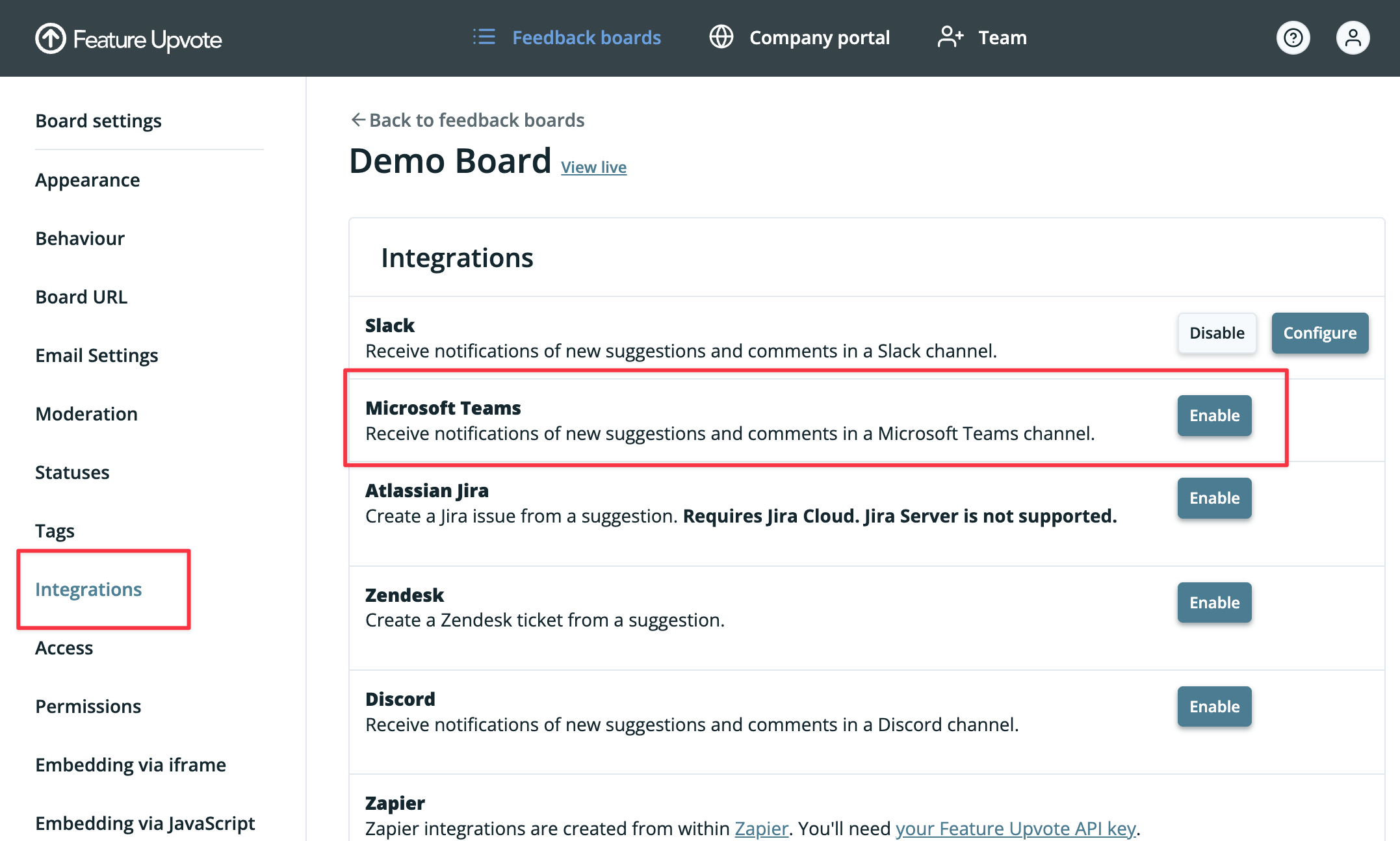
- In the configuration options, paste the “Webhook” URL you created with Microsoft Teams into the Microsoft Teams Webhook URL field.
- Click on Save changes.
You’ll now see a new “Test Microsoft Teams integration“ button appear.
This will let you trigger Feature Upvote to send a test message to your chosen Microsoft Teams channel. You should use this to make sure your Microsoft Teams workflow is correctly set up.
Using the Microsoft Teams integration
Section titled “Using the Microsoft Teams integration”Each new suggestion appears in your Microsoft Teams channel and includes a button to view the new suggestion.
Likewise, each new comment appears in your Microsoft Teams channel and includes a button to view the new comment.
Customising the Microsoft Teams integration
Section titled “Customising the Microsoft Teams integration”You have some options to control what exactly gets sent to Microsoft Teams.
To change these options, from your board’s Integrations settings, click on the Configure button in the Microsoft Teams section.
The options you can configure are:
- Whether to send notifications of new suggestions and comments to Microsoft Teams, or only new suggestions.
- Whether to abbreviate notifications of long comments.